
Digital Gas Sensors
What are Digital Gas Sensors?
As of July 2020, for NO2, CO, O3 (Ozone), and SO2, Air Quality Eggs use Digital Gas Sensors (aka DGS). These sensors offer users the ability to re-zero the units more easily and as often as they deem appropriate for their use case.
Cool!? How do I re-zero an Air Quality Egg DGS sensor?
For now it's admittedly not as easy as we'd like it to be, but anyone can do it by following the steps below. In the future, we hope to make it as easy as clicking a single button, so stay tuned.
- First you need to download and install the Egg Serial Configurator application from the Setup page.
- Next, and this is very important, the Egg needs to be connected to your computers USB, and they should not be disconnected / powered off throughout the following process. It should be connected to your computer's USB for at least 20 minutes, or preferably an hour. This gives the gas sensors time to warm up and stabilize. If the sensors haven't been powered up for a long time (e.g. a week), they may take longer to stabilize. Interruption of power can cause them to require more time to stabilize, so just keep them plugged into your computer for this whole process.
- One more important thing worth mentioning. We are about to re-zero the sensors, so it's vital that this process takes place in an environment that is presumed to be relatively free of the target species gas. For example, things like laser printers can produce ozone levels that you might not be aware of, but that the Egg can definitely measure, so do not re-zero an Egg with O3 sensors near a laser printer :-).
- Last important note (promise). Electrochemical gas sensors are quite sensitive to temperature. For best results, the following prrocedure should be conducted in a stable room temperature environment (i.e. around 20 Celsius / 68 Fahrenheit).
- Launch the Egg Serial Configurator application, and click the dropdown menu "Step 1 - Select Task"
- Scroll down to the bottom of the list of available tasks, select the option "console window", and click "OK"
- Click the green "OPEN CONSOLE WINDOWS" button and a new window with a black background will open.
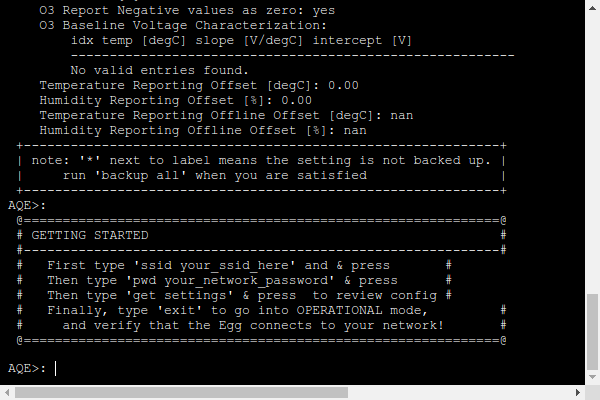
- After a short period of time, text will start to appear as the Egg reports its configuration data to the screen, and eventually will end with an "AQE>:" prompt where you can type commands into the Egg. It will look something like this:
- For each sensor you want to re-zero (there can be at most two per Egg currently):
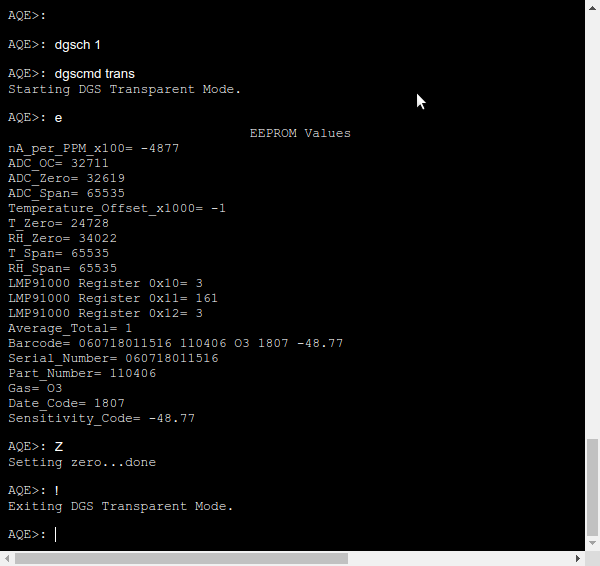
- First select the DGS channel (1 or 2) by typing dgsch 1 or dgsch 2 and press Enter.
- Then type dgscmd trans to begin a session communicating with the selected DGS channel.
- Then type e and press Enter (note this is a lowercase letter e).
- Make sure the output reflects the sensor you want to re-zero on the Gas line of output text.
- Then type Z and press Enter (note this is a capital letter Z).
- Then type ! and press Enter (that's an exclamation point) to end the session communicating with the selected DGS channel.
- You can repeat that command sequence for the second DGS channel as appropriate by starting with a different dgsch command.
That's it, easy peasy! Your sensors should now be appropriately re-zeroed. You can unplug them from your computer and they should report measurements close to zero! You can repeat this process as often as desired for applicdation


©2025 WICKED DEVICE LLC. ALL RIGHTS RESERVED